

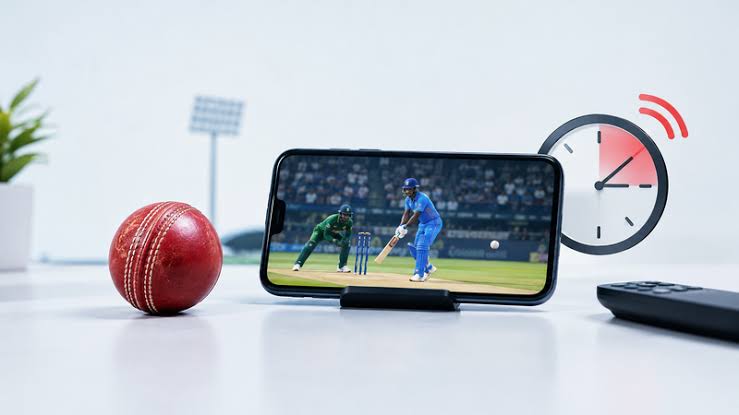
A cricket session’s data use can be limited by selecting the updates required, limiting video play and having control of background data transfers which aren’t necessary for a cricket session. First examine the usage data for the phone, and then change settings for this usage. There are varying viewpoints in text scores, commentary, audio and video. The aim is to effectively manage the flow of media and background traffic which are also accessing the mobile connection, and to ensure match information is useful.
Check what uses data during a cricket session
Open the phone’s data-usage settings and find the browser or app used for match updates. Readers following desi live cricket betting in india can start by checking how much mobile data their browser uses during a session. Note the displayed period before interpreting the figure. A running monthly total includes earlier activity and needs a baseline for comparison.
A browser’s total can include several websites, so keep unrelated browsing out of a short comparison. Record the figure before and after a similar period of following the match. Phone measurements and carrier measurements can differ. Use the device figures to investigate where data is going, and check the carrier’s account information when assessing usage against the allowance in the mobile plan.
Choose the update format that fits the session
Think about what information is required at that time. Score card can be used for text with total contributions and Player contributions and commentary can be used to describe deliveries. There’s also some sound and video coverage. For those services that offer these options, select the most appropriate. A person reviewing the score in between tasks might select various format than a person when reviewing the entire action of play.
Set autoplay and video quality settings within the player/service settings. The muted clip will not make any sound, but video might load if the muted clip is muted. Stop or take breaks from the moving picture when there is no longer a need for it. Open players can also be closed to help determine the active players. There are some common controls but others may not include them and others may include different ones. View individual pages and ensure that the controls are present.
Use Android data saver for background activity
Android Data Saver addresses background mobile-data use. On Pixel phones, Google explains that most apps and services receive background data only through Wi-Fi while this mode is enabled. Currently active apps and services can still use mobile data. This makes the setting relevant to activity alongside the cricket session, rather than a guarantee that the open score page will stop transferring information.
On a Pixel, open Settings, choose Network & internet, then Data Saver. Other Android devices may arrange these menus differently. Review any Unrestricted data exceptions, because those permit selected apps to use background mobile data. A brief setup routine is:
- Turn on Data Saver.
- Review the apps with unrestricted access.
- Keep exceptions needed for specific background functions.
- Check that the desired match alerts still arrive.
Set up low data mode on an iPhone
Low Data Mode is an option that restricts the background data usage of an iPhone. Apple’s guidance for LTE / 4G takes users via the Settings, Cellular and Cellular Data Options menu. If you have 5G, this will be found in Data Mode, in Cellular Data Options. Dual-SIM setups might require to be configured in the correct line first. Verify the path that the connection is being used.
According to Apple, apps behave differently in this mode. This can include updating settings to discontinue automatic downloads and backups, ending background app refreshes, and reducing streaming video quality. There is a mobile session in Low Data Mode. Blocking a cell app disables its ability to connect to the cellular network, and requires it to rely on WiFi. After setting the options, check the features that will be used during the match in the match view.
Review downloads and background transfers before play
Other services can connect, the cricket page can be running. Track live file download, automatic update, cloud upload and transfers. Configure discretionary transfers to utilize wi-fi, if offered by the app. Explain the purpose of the service that the activity provides. This will make it easier to assess the changes than if you were to make several non-related changes at once before beginning the session.
Use Wi-Fi if possible and suitable or determine which connection the phone is on. Keep up cached website resources from a routine data-saving audit. They are likely to be downloaded again in the browser if they are removed. Relying on page refreshes to request more content also can pose a problem. If there are normal updating controls on the site, use them for the updating controls, but if there are no normal updating controls, then just refresh or load the page at the required time.
Measure the change during the next session
Make comparisons over a comparable viewing time, with the settings changed. Note whether or not the session was text, audio or video, since this will impact on the comparison. When testing the effect of one factor, make sure that only one factor changes. The total can be different with a different session length or viewing format.
The benefit is that the match info is displayed and optional playback and background transfers use less mobile data. To double-check, make sure to view the live and phone use statistics. Memorize those settings that maintain that balance and check when viewing format or connection is altered.
